
Explorer Session Saver
- No match
Machine translation — the English original is authoritative.
The Story
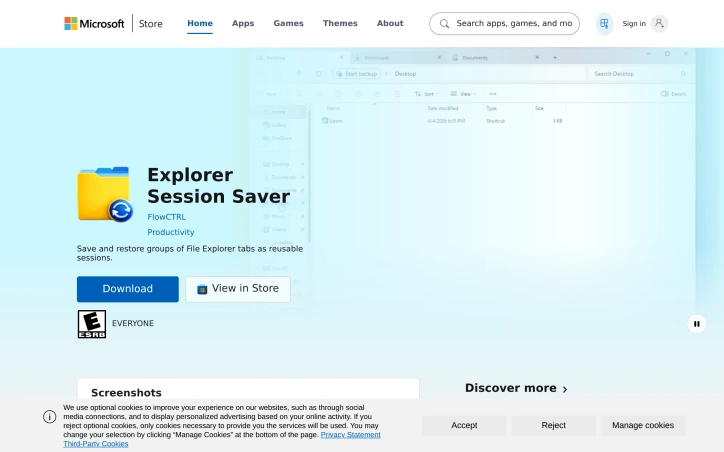
I built Explorer Session Saver to save time reopening daily project folders and research sets. It saves and restores entire File Explorer workspaces in seconds. It's a simple, local utility for everyday use with Windows 11 native Explorer tabs.
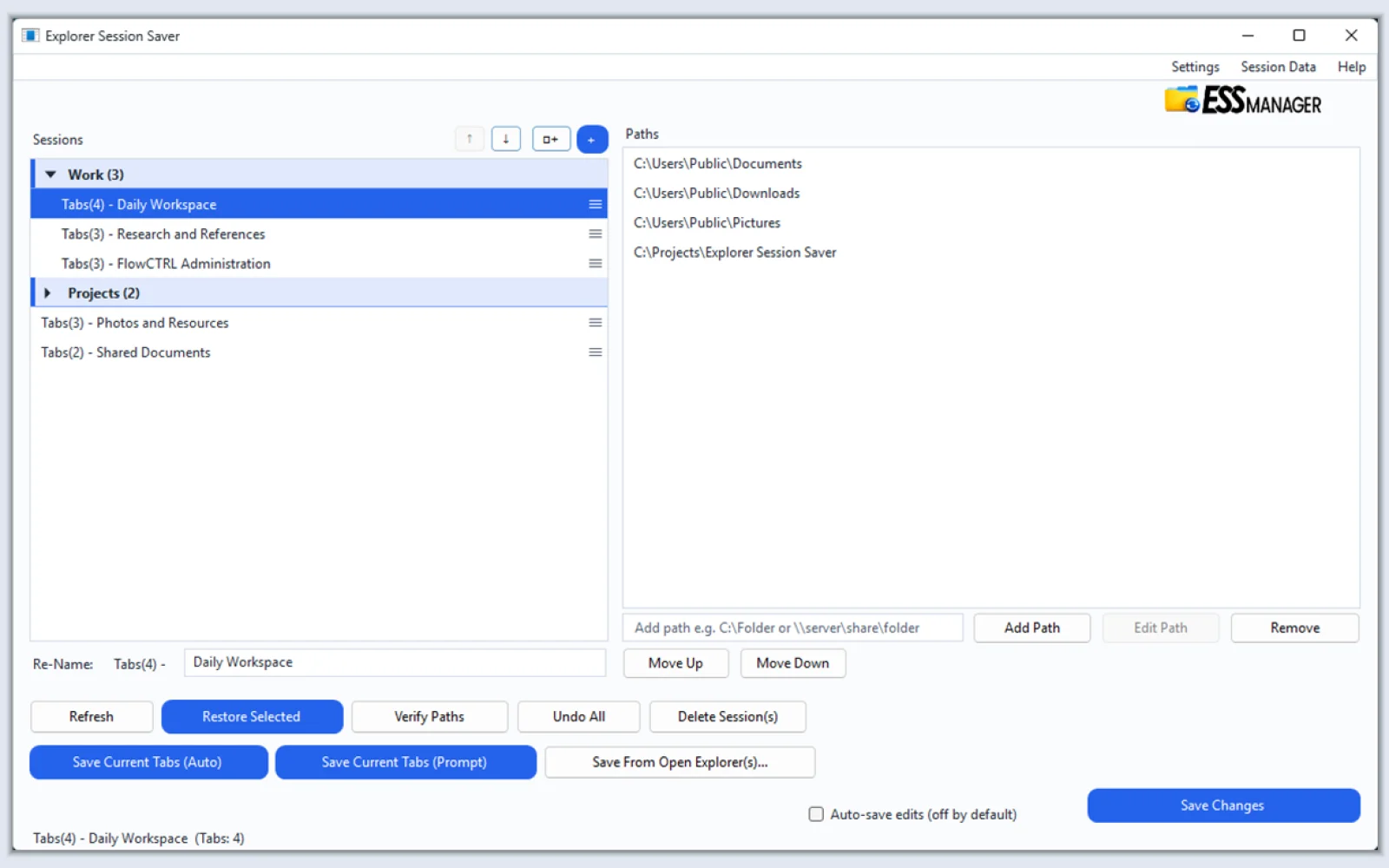
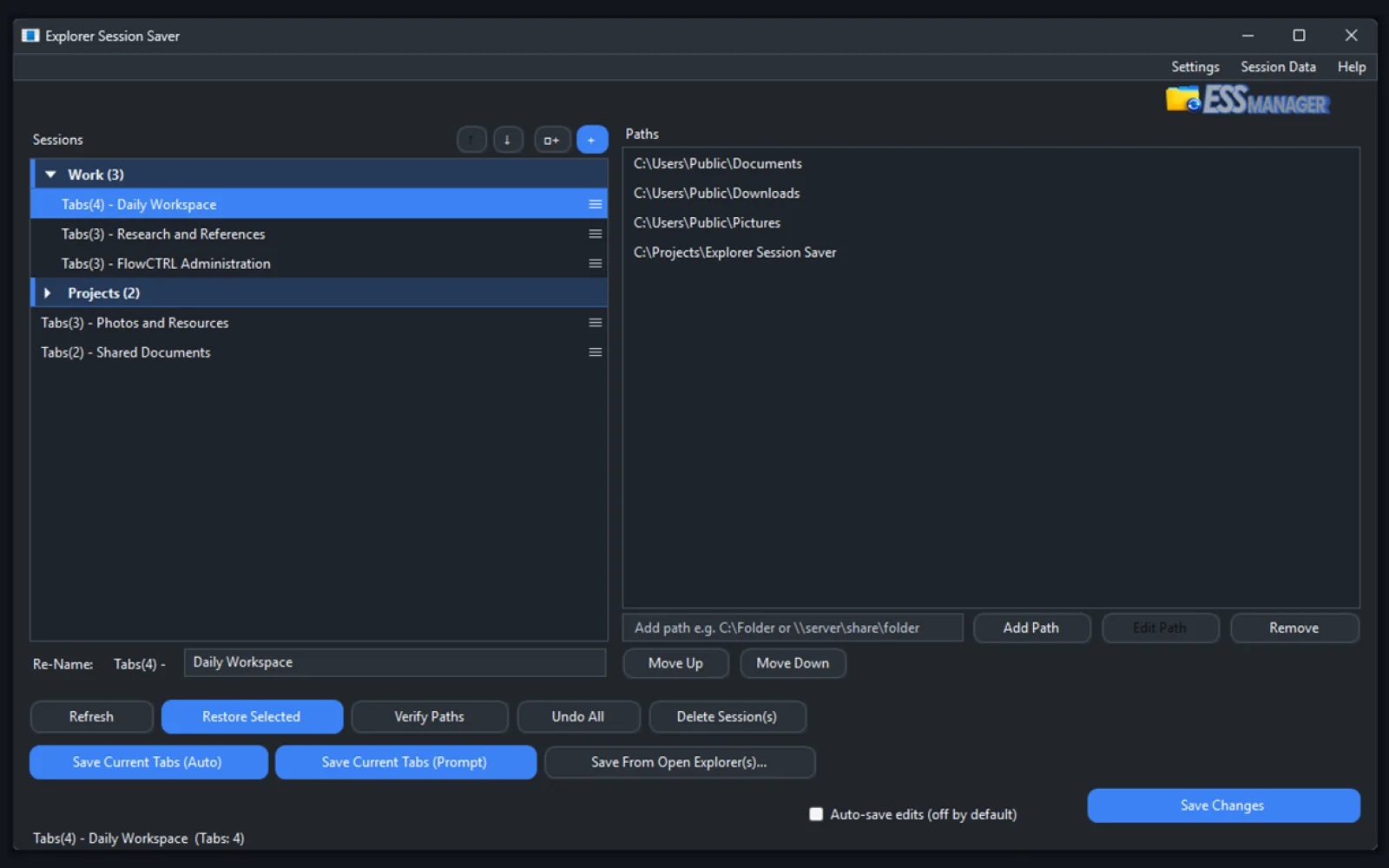
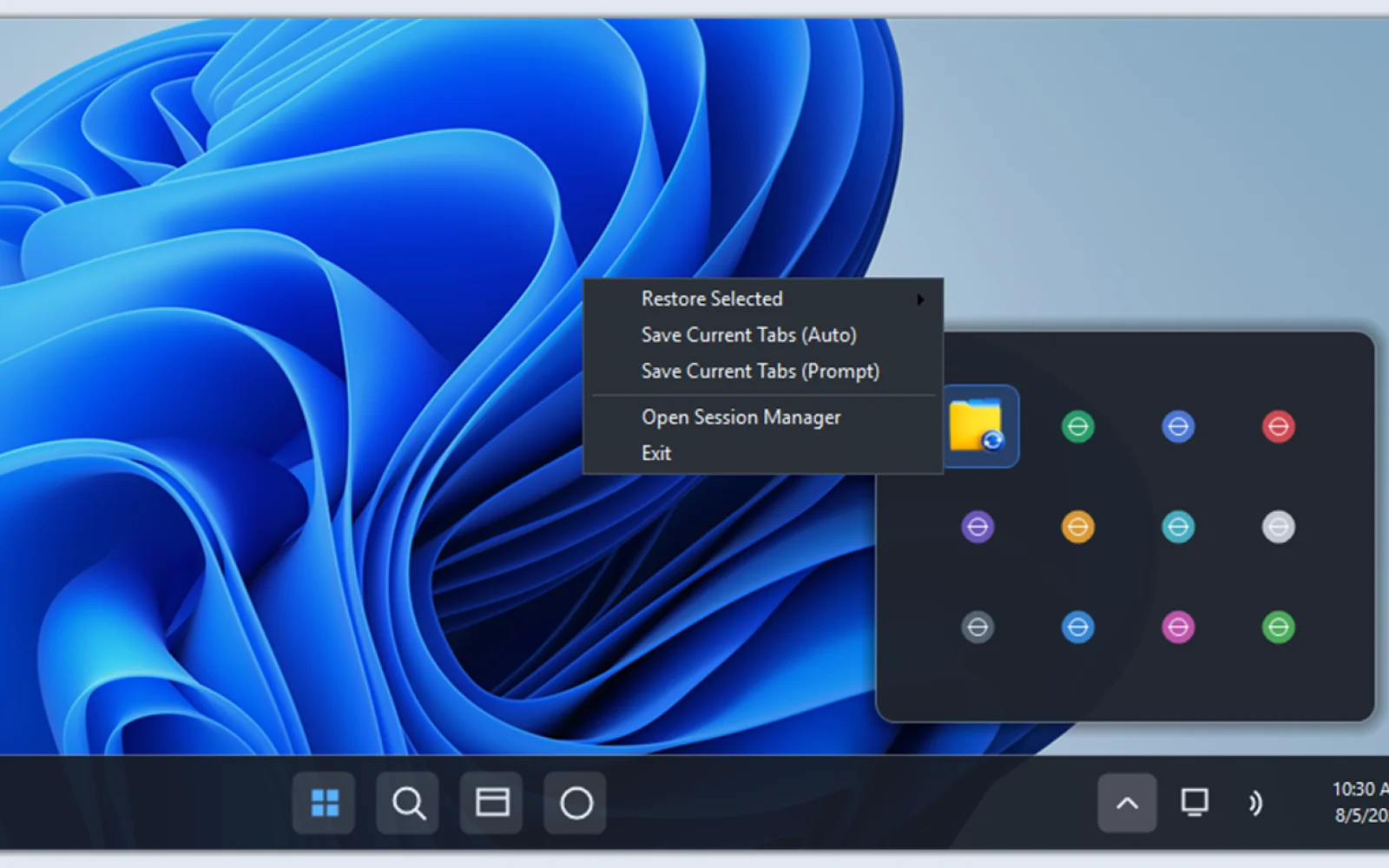
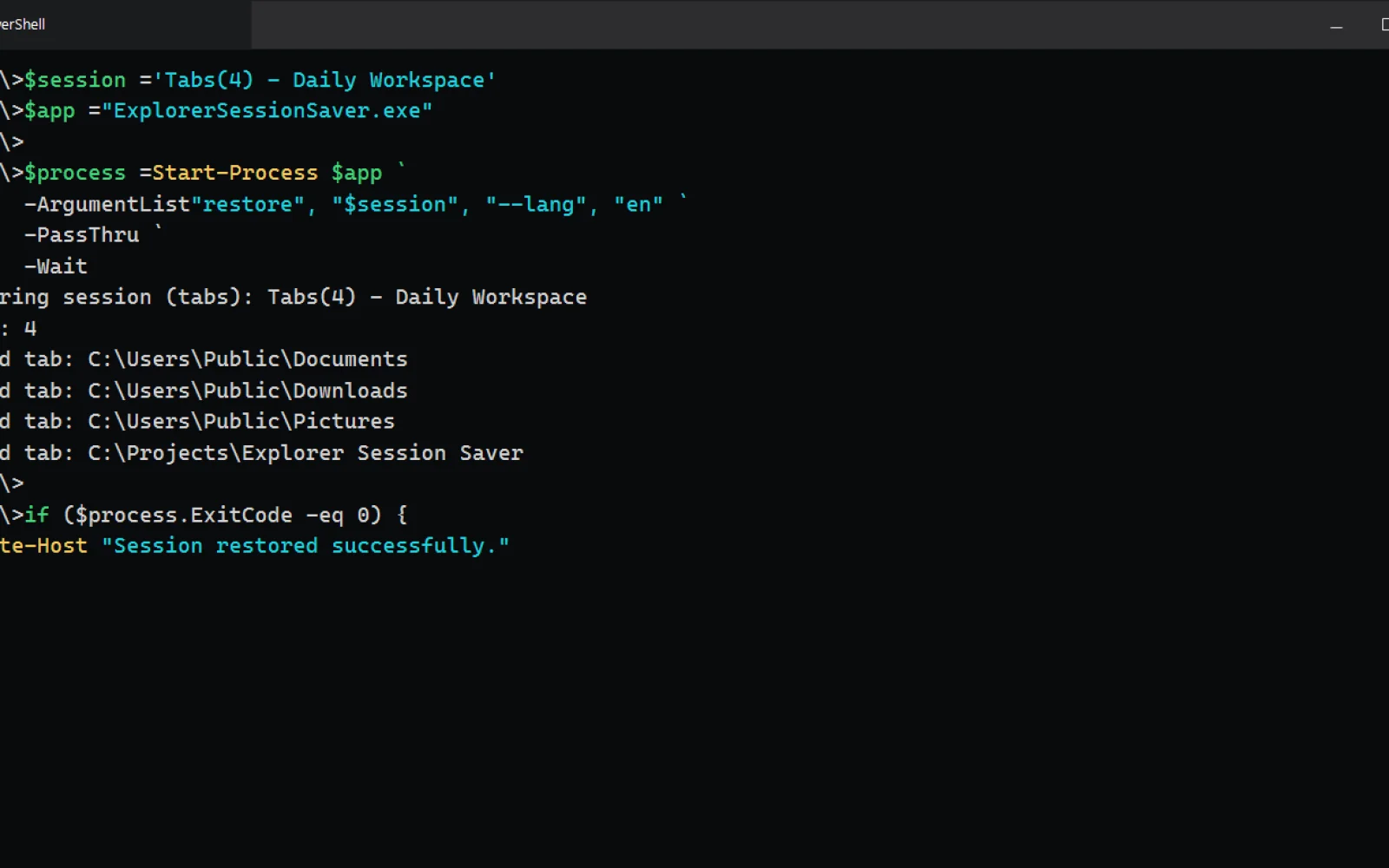
The app saves your open windows and tabs as named sessions, letting you restore entire workspaces instantly from the ESS Manager, system tray, or command line
AI Overview
AI-generatedWindows users juggling multiple project folders and research sets know the friction of rebuilding the same File Explorer workspaces every time they start their day. Explorer Session Saver addresses this by capturing entire File Explorer configurations and restoring them on demand, eliminating the repetitive task of manually reopening tabs and navigating to the same directories.
The tool works within Windows 11's native Explorer tabs, treating the entire window state as a snapshot. Users name and save their current workspace, then restore it later with a single action from any of three entry points: the ESS Manager interface, the system tray, or the command line. This multi-path access acknowledges that users work differently—some prefer GUI interfaces while others benefit from automation through scripting.
What distinguishes Explorer Session Saver is its deliberate simplicity. Rather than attempting to be a comprehensive productivity suite, it solves one specific friction point in the daily workflow. The decision to operate as a local utility rather than a cloud-based service means workspace data stays on the user's machine and restoration happens instantly without network latency. For professionals working with sensitive files or restrictive internet conditions, this local-first architecture is a practical advantage.
The free distribution model removes barriers to adoption, making it accessible to individual developers, researchers, and knowledge workers who manage complex folder hierarchies. The Windows 11 focus reflects platform-specific design rather than attempting cross-platform compatibility, suggesting the developer understood where the actual pain point lives.
The application assumes users have established workspace patterns—it works best for those with consistent session layouts rather than those opening different folders each day. It targets the developer who returns to the same project folders, the researcher maintaining consistent research datasets, the analyst with a standard folder layout. For this audience, the ability to restore entire workspaces in seconds transforms a daily five-minute overhead into a one-click operation.
The command-line access point opens possibilities for scripting and automation, though basic manual restoration through the GUI or system tray covers the primary use case. Explorer Session Saver delivers functional value without unnecessary complexity or monetization friction.
Founder Diary
Devlog-
Entry 11: Built with Feedback and Innovation
Version 2.1.0 is live, and this update grew far beyond session merging. It adds drag-and-drop transfers, session comparison, open-tab importing, stronger backup and recovery tools, better path availability handling, Unicode fixes, phone-storage support, and more. Just as important, several improvements came directly from users who reported bugs, shared feedback, and exposed situations I had not encountered myself. Thank you to everyone who took the time to help. ESS is better because people are using it, testing it, and telling me where it can improve.
-
Entry 10: Composing Sessions
What began as session merging has grown into a way to compose saved workspaces. Paths can be moved, copied, inserted precisely, or collected into a new session. A picker can add open tabs from several File Explorer windows to an existing session or create a new one. Session comparison shows shared and session-specific paths before a transfer, while a root relocation preview shows every affected path. Cut, copy, paste, undo, redo, and imports of folder items from File Explorer round out the workflow. One feature has become a connected toolkit for shaping sessions.
-
Entry 9: Reworking Sessions
The next ESS update is taking shape. I have been working on session merging and drag-and-drop movement of paths between saved sessions. Together, these features should make reorganizing a workspace direct instead of requiring sessions to be rebuilt by hand, and the work is nearly complete. I am also exploring a way to add tabs from an open File Explorer window to an existing session, extending it without replacing what is already saved. As ESS becomes more flexible, what would you most like to see it do next?
-
Entry 8: Five Months In
ESS is five months old, but its changelog already spans ten releases, nine updates after launch. Version 1 established the foundation: saving and restoring File Explorer tabs, then improving reliability, backups, customization, and recovery. Version 2 marked the biggest leap. ESS became more than a tab-saving utility; it became a workspace manager, with collapsible groups, natural and custom ordering, stable session identities, offline-path handling, moved-folder tracking, stronger recovery, safer storage and migration, broader CLI controls, and support for 11 languages. The original idea stayed simple. Everything around it grew more capable.
-
Entry 7: Catching Up
For six entries, I’ve used this diary to explain how Explorer Session Saver came to be: the daily frustration, the first rough automation, and the decisions that turned it into a public product. That history matters, but it is time to catch up. From here, I’ll share recent releases, features in development, ideas that worked, and failures that forced a better approach. ESS has changed continuously since launch, often because real use exposed something testing did not. The origin is recorded. Now the diary follows what ESS is becoming.
-
Entry 6: Why I Made ESS Public
Explorer Session Saver did not become public because I knew there was a market. Building a software business taught me that Windows apps must earn trust, but I refused to release something hollow for downloads. ESS solved a problem I had lived with, so I offered it without tracking or data collection, translated it into 11 languages, and kept improving it. I still wonder whether others need it as much as I do, but I cannot be the only person tired of rebuilding the same workspace every day.
-
Entry 5: A Session, Not a Shortcut
Explorer Session Saver is more than a list of shortcuts. It gives me one place to store hundreds of named sessions, organize them into groups, and tailor each set of folder paths to a specific task. I can build a session once and restore it in seconds whenever I need it. That matters when I have five construction projects under review, each with details buried in nested folders. ESS shows the restore as it happens, identifies failures, lets me resume, and handles temporary locations without breaking the entire session.
-
Entry 4: From Prototype to Product
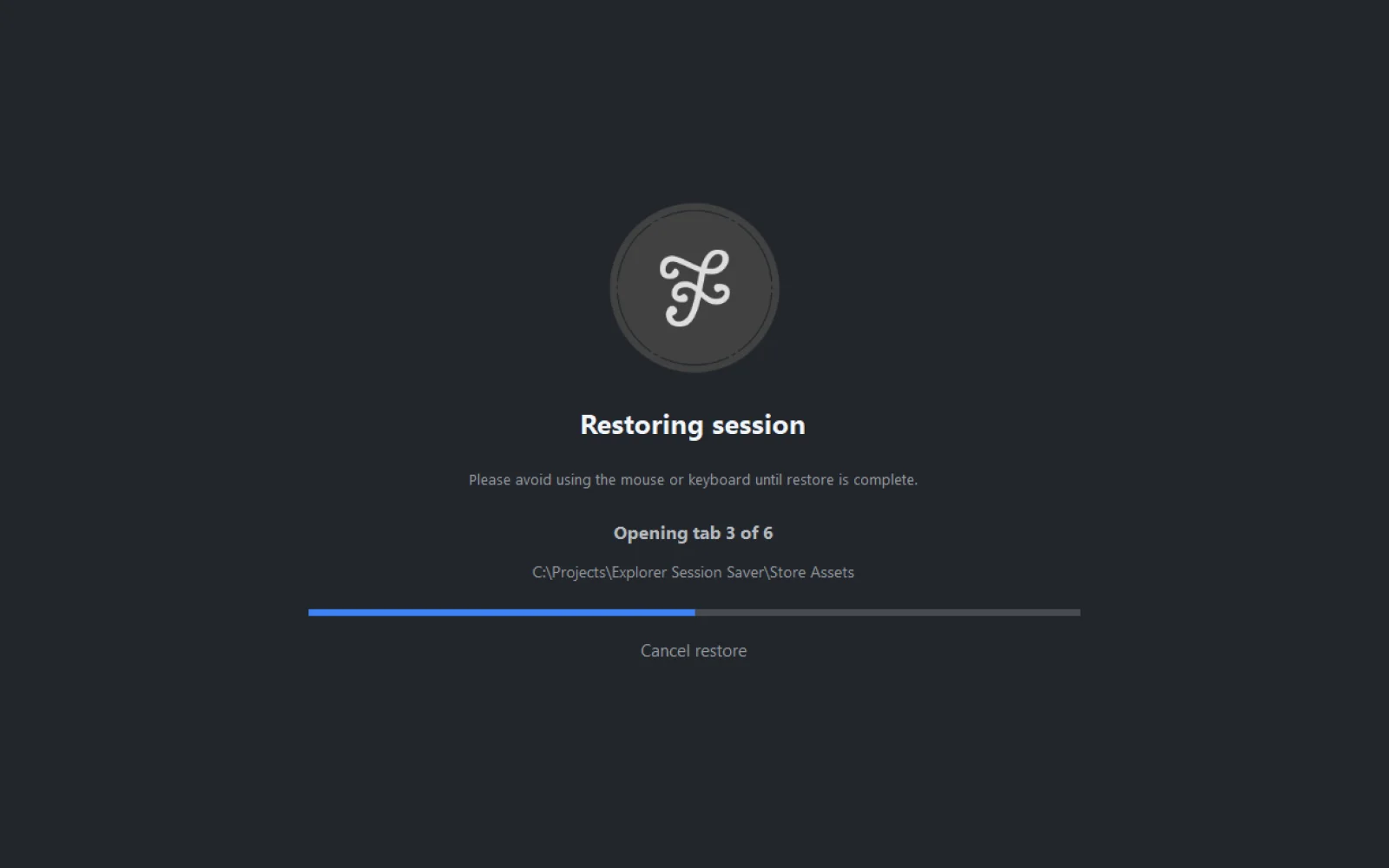
Once Explorer paths could be captured, saved under a meaningful session name, and rebuilt with one click, Explorer Session Saver stopped feeling like an experiment. COM-based Explorer enumeration replaced the visible copy-and-paste process and eliminated the distracting flicker. I kept the activity mask, but turned it into a useful progress layer showing paths, status, controls, and cancellation. The Manager added editing, reordering, grouping, and quick review, while the system tray kept restoration out of the way. That was when ESS became a product.
-
Entry 3: Working With Windows, Not Replacing It
On Windows 10, my workspace was usually six File Explorer windows, minimized and selected by hovering over the taskbar. Pinned folders and third-party tab tools helped, but none could restore what I rebuilt every morning or whenever I switched projects. Windows 11 changed my thinking. Native tabs suggested that folder paths could be captured, saved, and reopened within Explorer rather than replacing it. The first version used copy-and-paste automation—and plenty of flicker—but when one click rebuilt a complete tabbed workspace, the idea became real.
-
Entry 2: Turning Experience Into a Product
Software development isn’t my primary profession, but I wasn’t starting from zero. Over the years, I had built practical tools and learned how software, data, and workflows connect. Explorer Session Saver began as a solution, not a business plan. AI-assisted development helped me turn field experience and a recurring frustration into a complete application. I tested each feature against how I use folders on real projects. Building it showed me that useful software often begins with understanding a problem well enough to know what a better process should feel like.
-
For more than a decade, I’ve worked in construction. Every project lives inside a maze of folders and subfolders, a digital filing cabinet I open and navigate. I need quick access to drawings, reports, photos, specifications, and inspection records. At day’s end, I close everything, only to rebuild the same workspace the next morning. After years of accepting that routine, I used AI-assisted development to create Explorer Session Saver, a tool that saves and restores my open folders as a session. It solved a real, recurring problem for me, and now I’m ready to share it.
Key Features
File Explorer Snapshots
Captures entire File Explorer window configurations including tabs and navigation states
Multi-Point Restoration
Restore saved workspaces via ESS Manager interface, system tray, or command line
Local-First Storage
Workspace data stays on your machine for instant restoration without network dependency
Windows 11 Native Integration
Works seamlessly within Windows 11's native Explorer tabs
Named Session Saving
Save current workspace configurations under custom names for quick identification
Use Cases
-
1
Software Developers
Return to project folders without rebuilding workspace layouts each day
-
2
Researchers
Maintain and restore consistent research dataset folder hierarchies instantly
-
3
Analysts
Access standard folder layouts without manually reopening directories
-
4
Knowledge Workers
Eliminate the daily five-minute overhead of reopening multiple folders and tabs
FAQ
how do I restore my saved workspace ▾
is my workspace data stored in the cloud ▾
can I automate workspace restoration ▾
does it work on windows 10 ▾
Pricing
Free distribution model removes barriers to adoption for developers and knowledge workers.
Tech Stack & Tags
Discussion
No comments yet — be the first!
Join the conversation — sign up to comment.
Sign up freeCommunity Support
Boost this project on Sell With boost